To clear your browser data in Google Chrome:

Open Google Chrome and press Ctrl + H on your keyboard and skip to step 3, OR:
1. Click on the menu icon located at the top right corner of the screen.
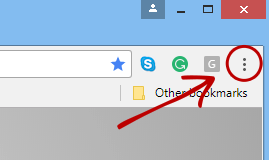
2. Select History

3. Click on 'Clear browsing data'

4. Select the following Options
- Go to the 'Advanced' tab
- Select 'All time' from the time range drop-down
- Check the first 4 boxes (especially 'Cached images and files')
- Press the blue 'Clear Data' button

Comments