This article covers how to reset your password if you cannot log into the parents portal or app. to CHANGE your password once logged in please click here.
Resetting your password
Password Requirements
- Your password must be at least 8 characters long
- Your password must contain at least one uppercase and lower case characters
- Your password must contain at least one number
- Your password cannot contain a hashtag (#)
- Your password cannot exist on our forbidden passwords list (e.g. Password123, etc)
- Your password can not be the same as your current/existing password
Resetting your email from the parents portal
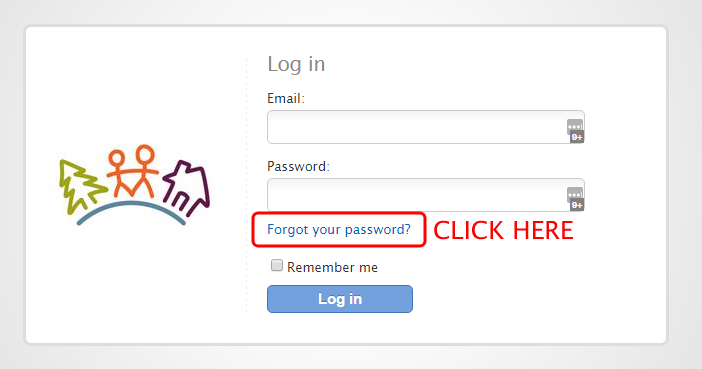
- The login page can be found in your welcome email under the Internet access options: Getting Started With The Parent Portal
1. Click on the 'Forgot your password?' link on your centre's parent portal login page.
2. Enter the email address you use to log in and click 'Submit'. A password reset code will be sent to your inbox. If you do not receive the email please check your junk mail inbox.
3. Follow the prompts in the email to enter a new password.
Re-setting your password from the App
1. Download the parent's app, enter your email and then select the forgotten password link.
2. Enter your email address (if you account is linked to multiple centres you will need to choose one)
3. Select 'Forgot Your Password?' at the bottom of the screen.
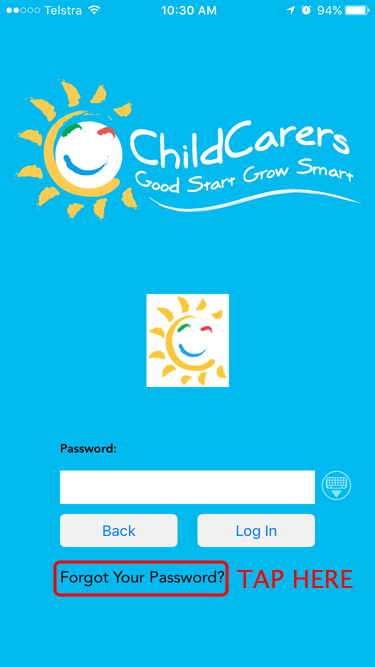
Make sure you stay on this screen (below) to enter to reset password code:
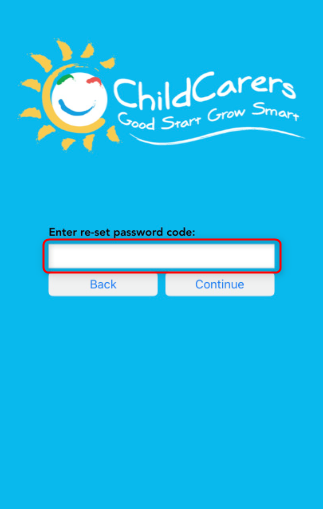
4. A password reset code will be sent to your inbox. Copy the code and enter it into the field in the example shown above.
Note: If you do not receive the email please check your junk mail inbox.
Follow the instructions in the email
You will receive a Password Reset e-mail with a link to click on containing a link with a unique reset password code.
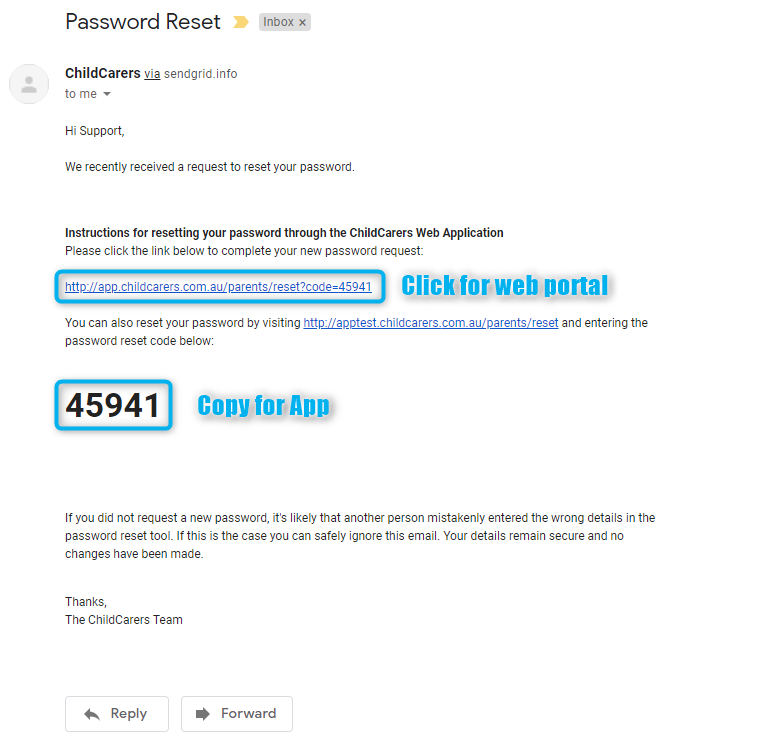
- Click on the first link provided and the code should be automatically entered, this is not where you enter your new password.

- Click Submit and proceed to the next page where you will be prompted to enter your new password twice.

Note: The password you enter is case sensitive so make sure you do not have caps lock on. If you use a capital letter you will need to enter it the same way every time.
- Once you have entered your new password of 8 or more characters, contains upper and lower case characters and at least one number, click Submit and you will be taken to your homepage.
Comments